May 22, 2024
Features
Polling
You can now use polling in conjunction with existing package schedules to further control when a package execution begins.
Polling allows the scheduler to monitor a specified file or database column for changes. Once a change has been detected, the package associated with that polling configuration can proceed. Each polling configuration can be configured with a timeout so that, in the event that the source being polled does not change, the associated package times out and an email is sent to the notification recipient(s).
Configuring polling is simple! First, access the new Polling menu from the sidebar, and then click on the (+) icon to create a new configuration:
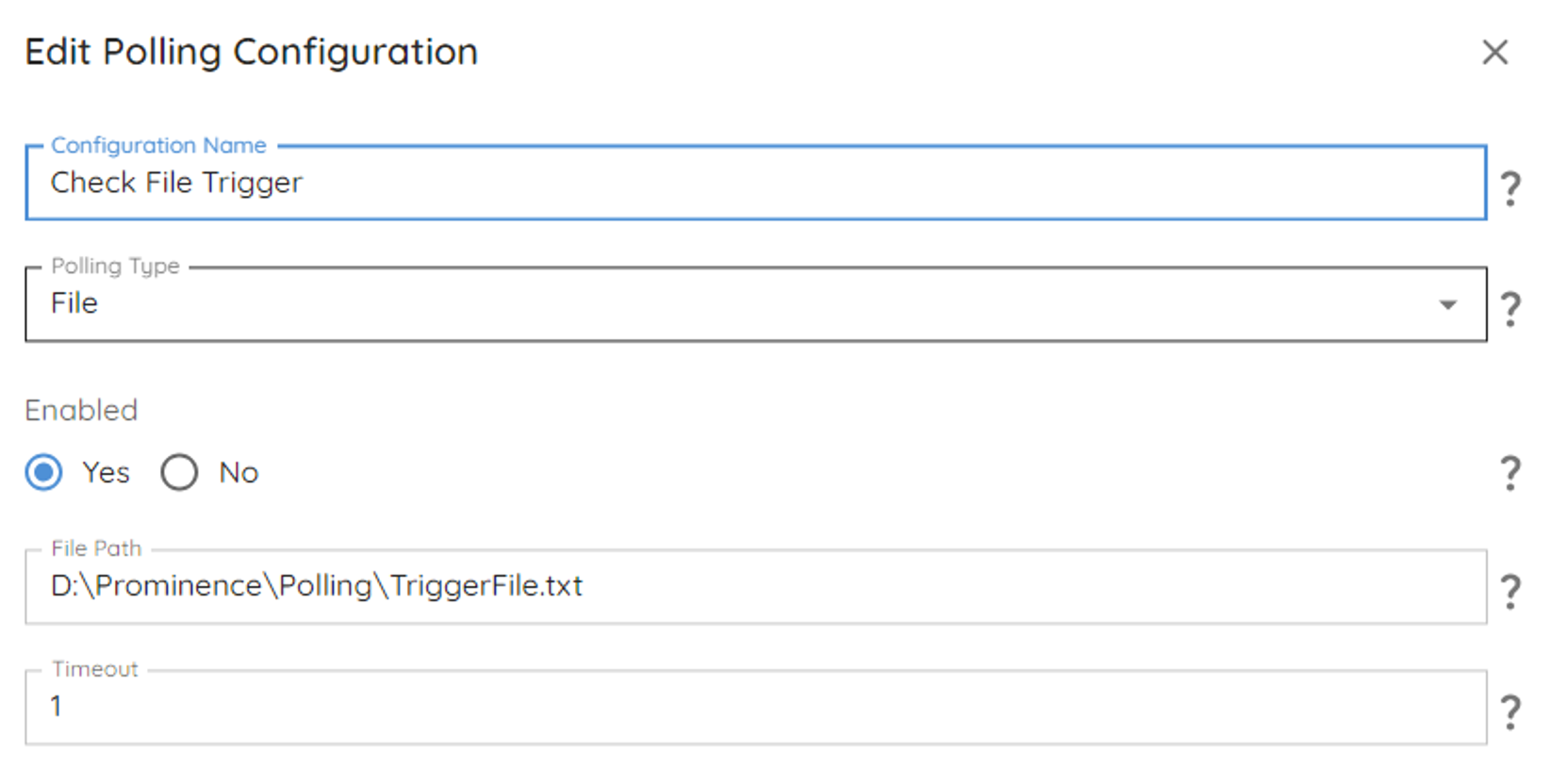
For file-based polling specify a configuration name, the timeout value (in minutes) and the path to the file to be monitored for changes. This file path can either be local to the SQL Server where the Prominence Platform Data Preparation Engine is installed, or it can be a network path.
For database column-based polling specify a configuration name, the timeout value (in minutes), the database connection (from the Connections page) and the table and column to monitor.
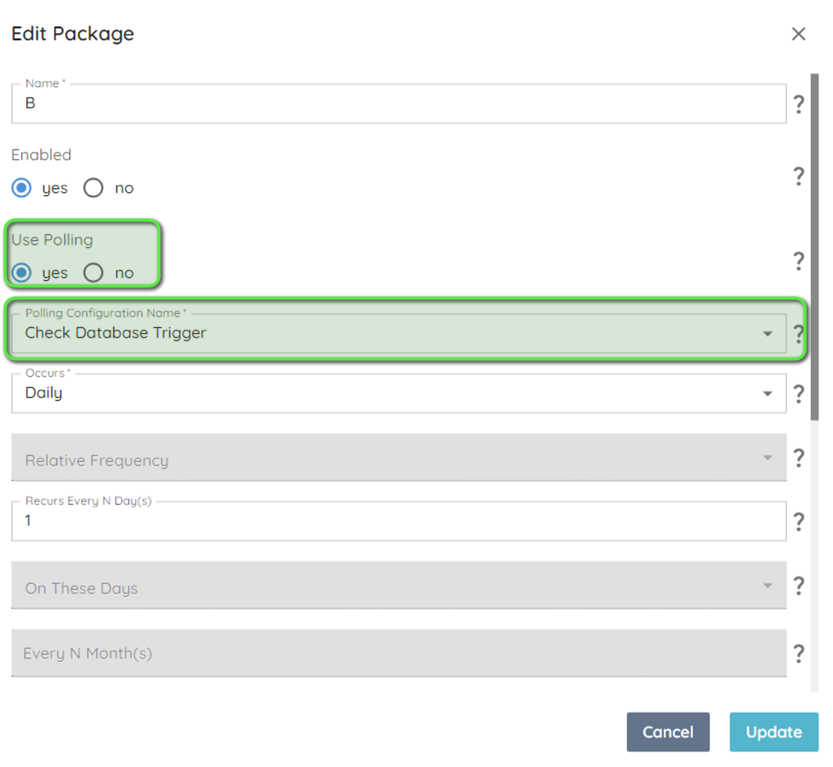
Last, go to an existing package or create a new package and set Use Polling to Yes, and then select your polling configuration from the Polling Configuration Name drop-down.
The next time the configuration console is imported into SQL Server the package schedule will now be driven by both the associated calendar configuration and the polling configuration.
---------------------------------------------------------------------------
Oct 3, 2023
Features
Environment Configuration
Added an environment-specific Settings section, allowing for the adjustment of environment-specific configuration points(e.g. number of concurrent extractions). The on-premises SQLExtractConfig.xlsx file is no longer required and has been deprecated.
Note that Settings are configured directly in each environment and are not promoted from Development > Validation > Production, like Packages/Tasks/Procedures/Variables.

Alert Suppression
You can now configure alert suppression if a large number of similar alerts are sent in a specified time window. This is done through the new Settings menu and is configured on a per-environment basis. The configuration point can be found in Settings > Notification:
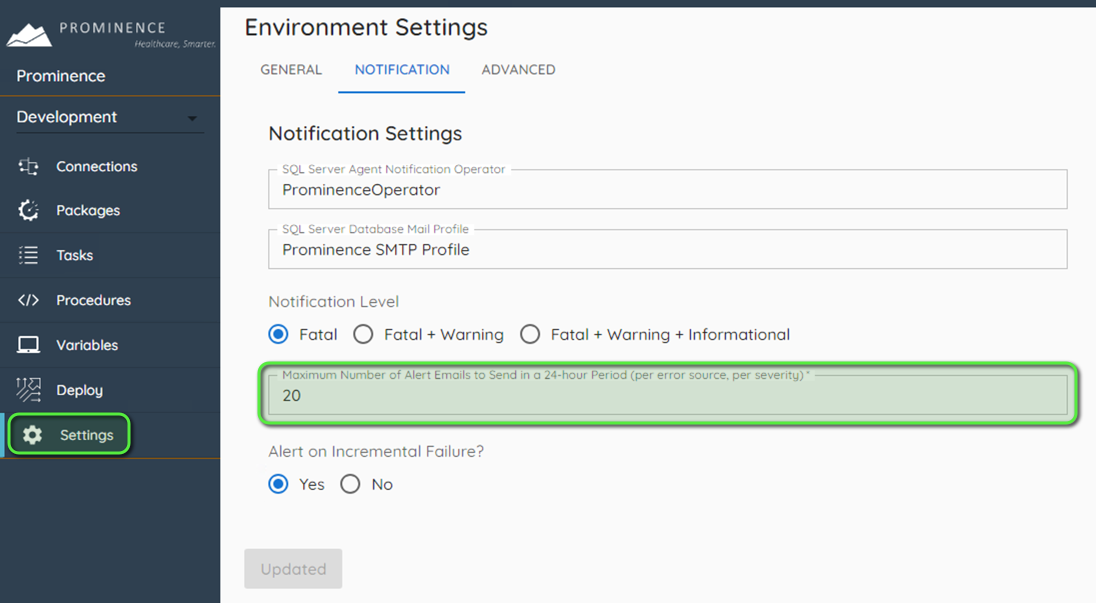
Maximum Alert Emails to Send in a 24-hour Period (per error source, per severity) - the number of messages that will be sent before alert suppression is enacted. Set this to 0 to disable alert suppression (an unlimited number of emails will be sent)
The alert window starts at the later of these two events:
- the last run of tools.ResetETL
- midnight of the current day
The alert window resets when any of these conditions are met:
- the procedure tools.ResetETL is run
- the alert suppression window expires
With this setting configured you will not receive more than Maximum Alert Emails to Send in a 24-hour period period.
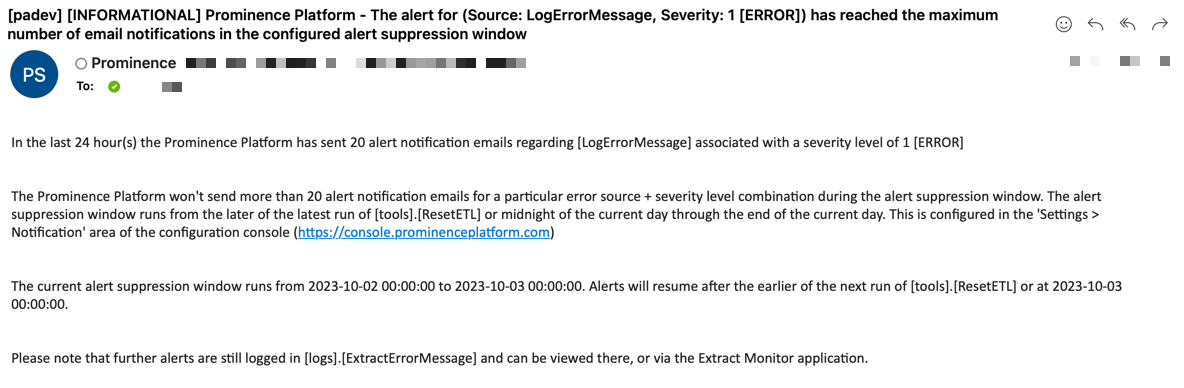
After the alert threshold has been reached you will receive one additional email that looks like the following:
--------------------------------------------------------------------------------------------------------------------------------
--------------------------------------------------------------------------------------------------------------------------------
After the alert suppression window has expired (or tools.ResetETL is run) notifications will resume, as before, until the suppression threshold is crossed again.
Updates
Account Information
Updated the Account section to include more context related to the logged-in user, and provided a link to the Microsoft Azure portal to execute a password change activity.
Other Enhancements
- Fixed an issue where a user who is already authenticated with Microsoft Azure may encounter a blank screen when accessing the configuration console.
- Fixed an issue where, under certain conditions, the application would display an invalid error message
---------------------------------------------------------------------------
Aug 7, 2023
Updates
Azure AD Authentication
Logging into the Prominence Platform is now more secure and more convenient with integrated Azure Active Directory authentication.

If you were using a personal email to login previously, you will now use your Microsoft/Office 365 credentials to log in. If your business email is not a Microsoft account, you will be asked to create Microsoft credentials at next login.
If you were using a shared @prominenceadvisors.com account, you can continue to use the same credentials, though you will see a new login screen when logging into the Console home page.
If you would like to update your access to use your business email, reach out to Prominence support using the support link in the Console.
User Roles
With this release, we've added the concept of user roles to give you more control over the access level of various console users in your organization. The table below describes each role and the features it can access in the Prominence Platform.
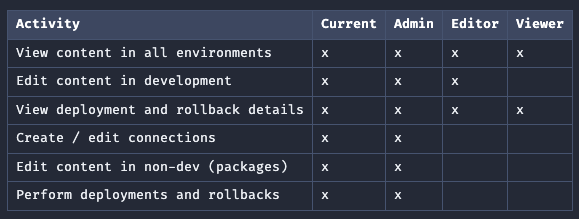
Viewer Role can view all environments, but cannot edit entities, deploy, or roll back.
Editor Role can view all environments and edit in DEV, but cannot deploy or rollback between environments.
If you would like to change roles for any of your users or add new users taking advantage of these roles, please reach out to Prominence support using the support link in the Console.
---------------------------------------------------------------------------
Jan 5, 2023
Updates
Variable and Rollback Time Stamps- Time Zone Dependent
When entering data in Variables and Rollback, the time stamp will display local to the customer's time zone.
---------------------------------------------------------------------------
Dec 15, 2022
Updates
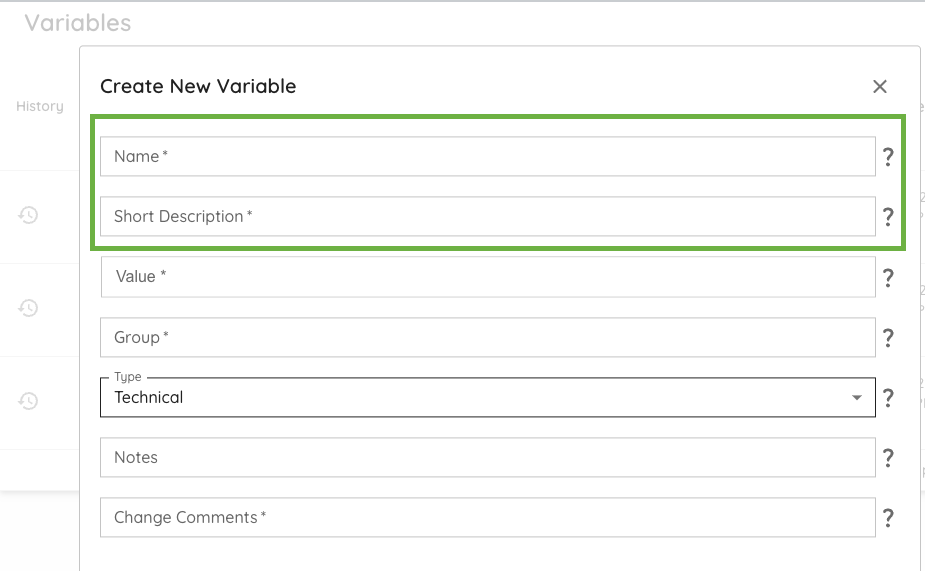
Variables- Data Entry Field Order Updated
When entering data in Edit Variables and Create New Variable, the entry order will display Name and then Short Description.
---------------------------------------------------------------------------
Oct 20, 2022
Features
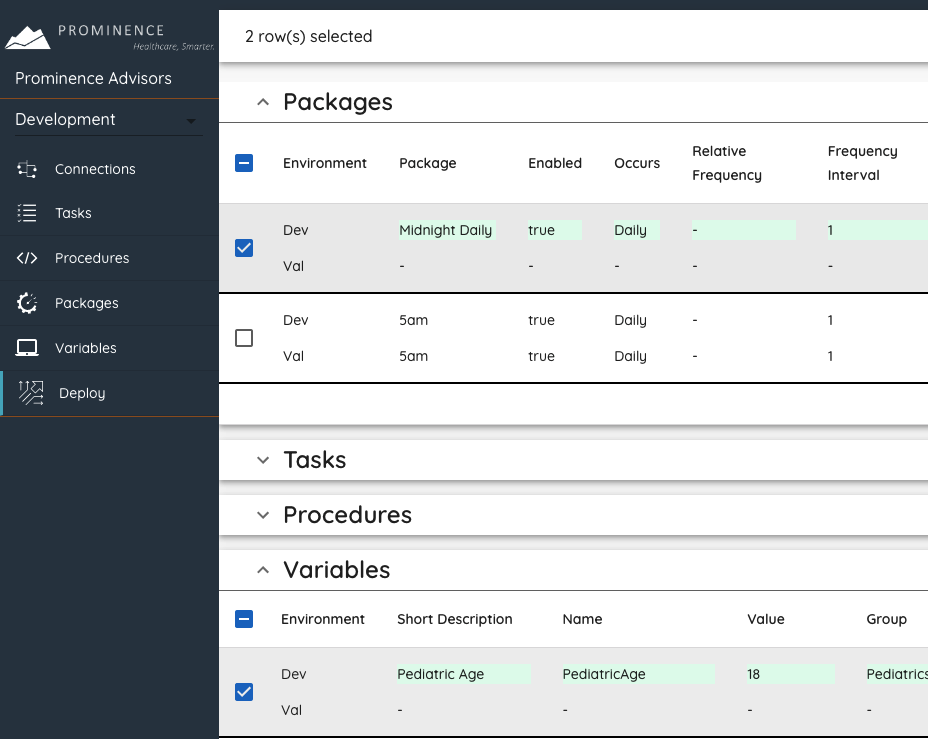
Multiple entity deployment and rollback
You can now include packages, tasks, procedures, and variables is a single deployment and roll them all back at once.

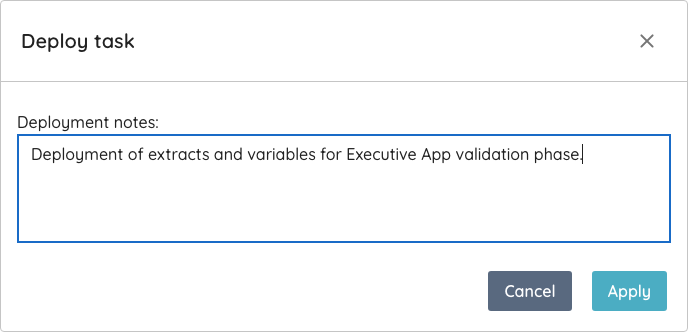
Deployment and rollback notes
Add optional notes to your deployment or rollback, which will appear in the deployment history view.
Multi-value variables
Create variables with multiple values—simply start typing and press ENTER between each new value.

Easier date and time entry
Date and time fields in the package editor now allow for typing in free text. Give it a try!


Other Enhancements
- API calls no longer use port 81
- Custom SQL text is truncated in list view
- Incremental and advanced sections auto-expand in task edit view
- Organization name is displayed after login
---------------------------------------------------------------------------